> For the complete documentation index, see [llms.txt](https://docs.brutalscripts.com/site/llms.txt). Markdown versions of documentation pages are available by appending `.md` to page URLs; this page is available as [Markdown](https://docs.brutalscripts.com/site/scripts/premium-shop/shopify-connection.md).
# Shopify connection
Hi there! 👋 We’re excited you’re using Shopify for your Premium Shop! Follow these steps to connect your store to your server quickly.
## ⚠️**Reminder**
You’ll need to subscribe to our monthly plan **after setting up your Shopify account.**\
The integration will only work once your subscription is active.
| Monthly | Semiannualy | Yearly |
| :----------------------------------------------------------------: | :----------------------------------------------------------------: | :----------------------------------------------------------------: |
|
25€/month 300€/year
|
20€/month 240€/year
|
15€/month 180€/year
|
***
## ⚡**Want to** skip **the setup?**
💼 **For a one-time fee, our team will handle all the necessary steps for you!**
All you need to do is **pay the one-time installation fee** [**via this link**](https://sub.brutalscripts.com/#pricing) 🔗 and **open a ticket on our Discord server**. We’ll install the system for you during business hours: **Monday to Friday, 9:00 AM – 5:00 PM (UTC+2)** ✅
### **If not, start here:**
***
## 1️⃣ Create a Shopify Account
If you don’t have one yet, sign up [here](https://www.shopify.com/).
***
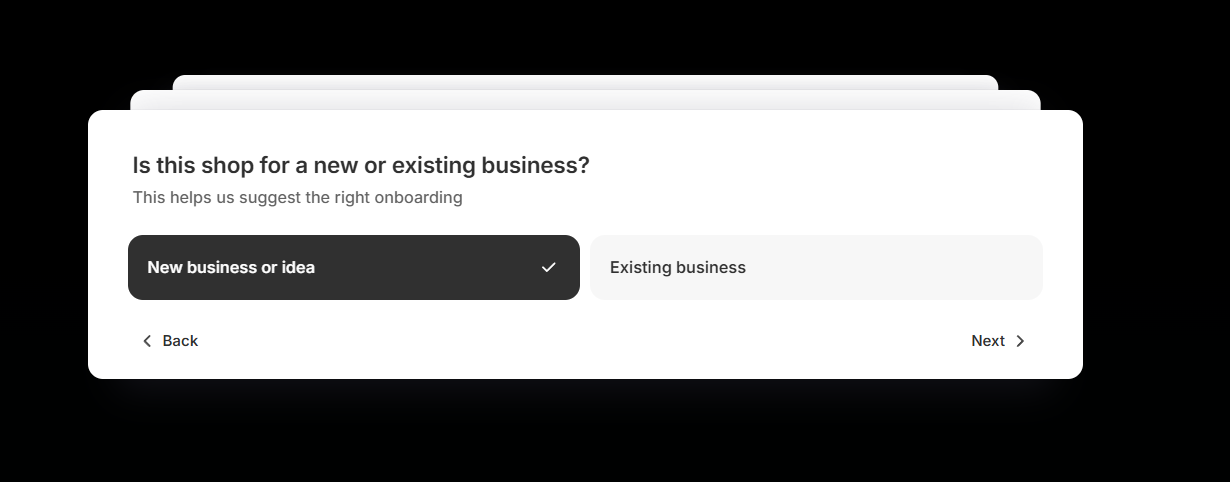
## 2️⃣ **Create a New Store**
\
Follow the options shown in the screenshots 🖼️ and at the end, enter **your server’s name**.
***
## 3️⃣ Subscribe to the Shopify
Choose the **Basic plan** and start your subscription. 🎉 For the first **3 months, it’s only €1**, and you can **cancel anytime**. ✅
💡 **Pro tip:** Choosing the annual subscription can save you a lot! 💰
***
## 4️⃣ Create Products
💰 **Product price example:**
If you set the product price to **€10**, the number of points the player receives **depends on the Coin Value setting in the script**. You can edit it in the admin panel.
We store the **net amount the player actually paid**, and when they redeem the code, the net amount will be multiplied by the Coin Value. (e.g., €10 × 100 = 1000 Coins)
***
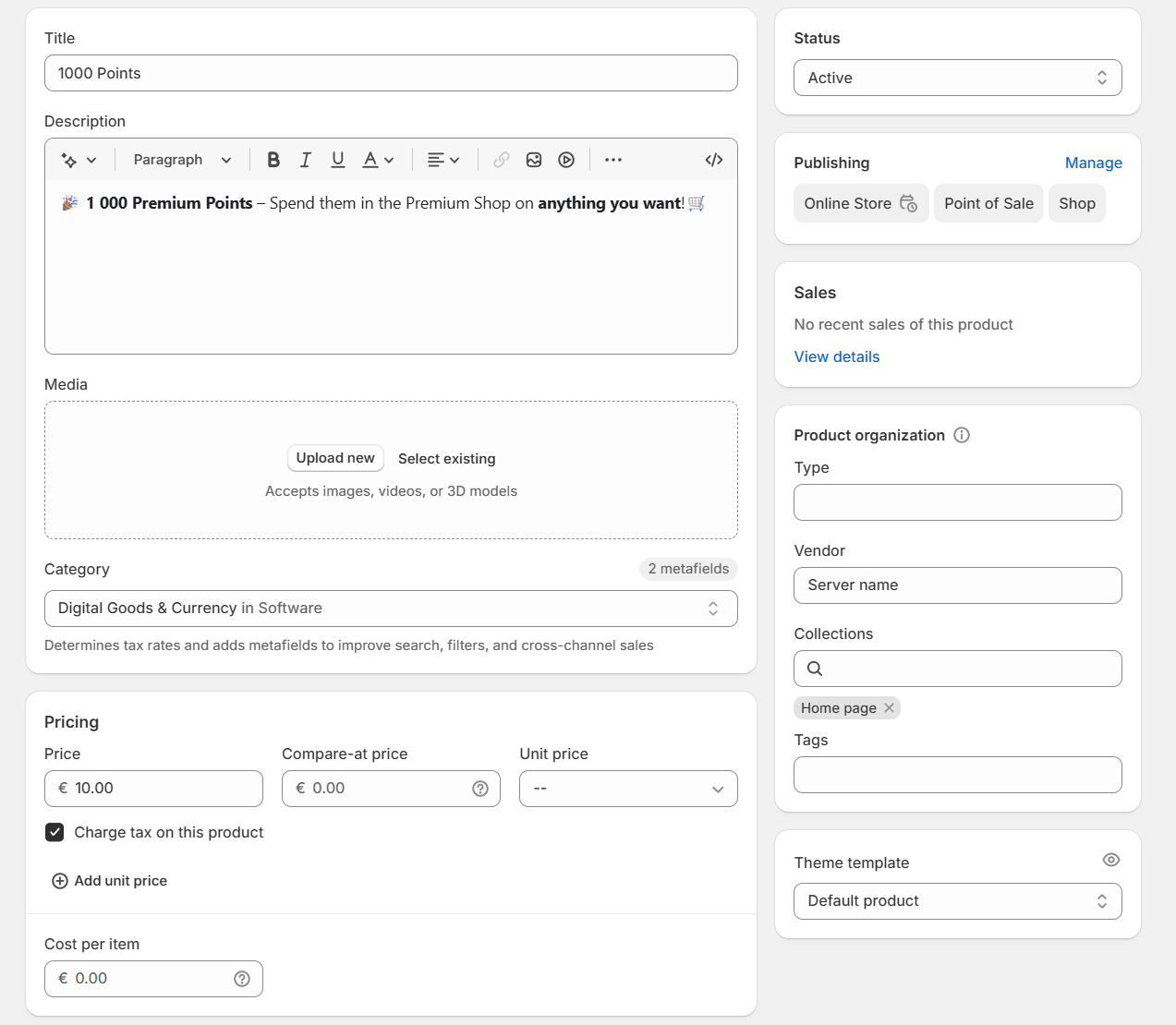
Navigate to the Products category and click to the "Add product" button.
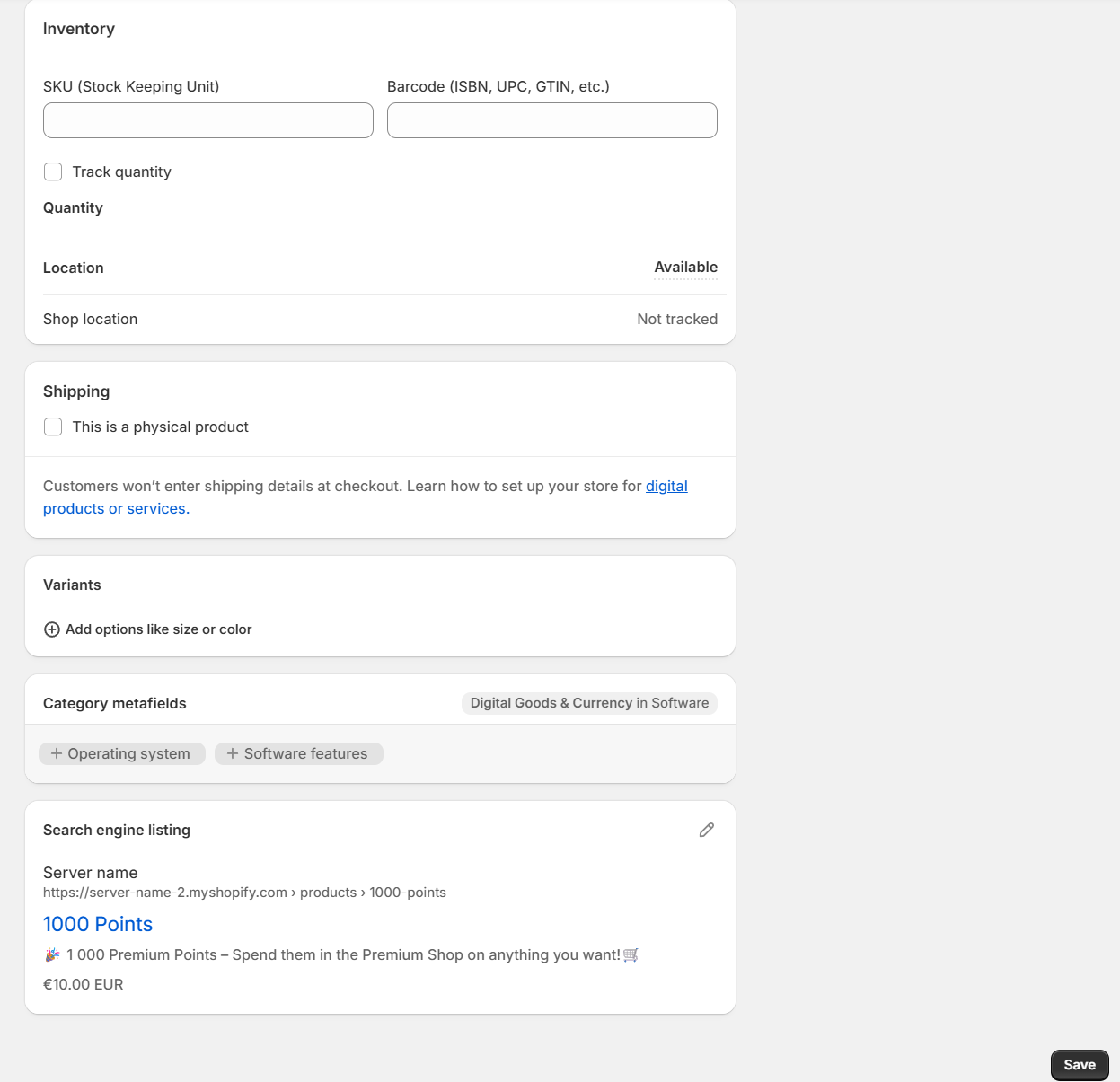
Create a product with details like this:\
\
Title: 1000 Points\
Description: 🎉 **1 000 Premium Points** – Spend them in the Premium Shop on **anything you want**!🛒\
Price: 10\
Charge tax on this product: Depend on your tax status\
Track quantity: No\
This is a physical product: No
After the changes click to the "Save" button to save it.
***
🛒 **You can create multiple products** with different prices to suit your server’s needs.
***
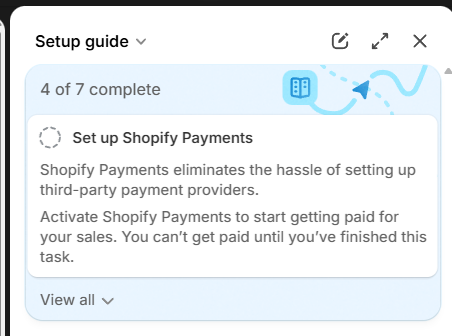
## 5️⃣ Finish the other Setup Steps
💡 **Step by Step:** Follow all the instructions Shopify gives you during setup. ✅\
Complete every required step carefully to make sure your store is fully ready to use. 🚀
⬇️
***
## 6️⃣ Webhook integration
🔔 **Navigate to the Notifications section** in the Settings menu.
### 🌐 Select the Webhooks section.
### 🔗Create Webhook
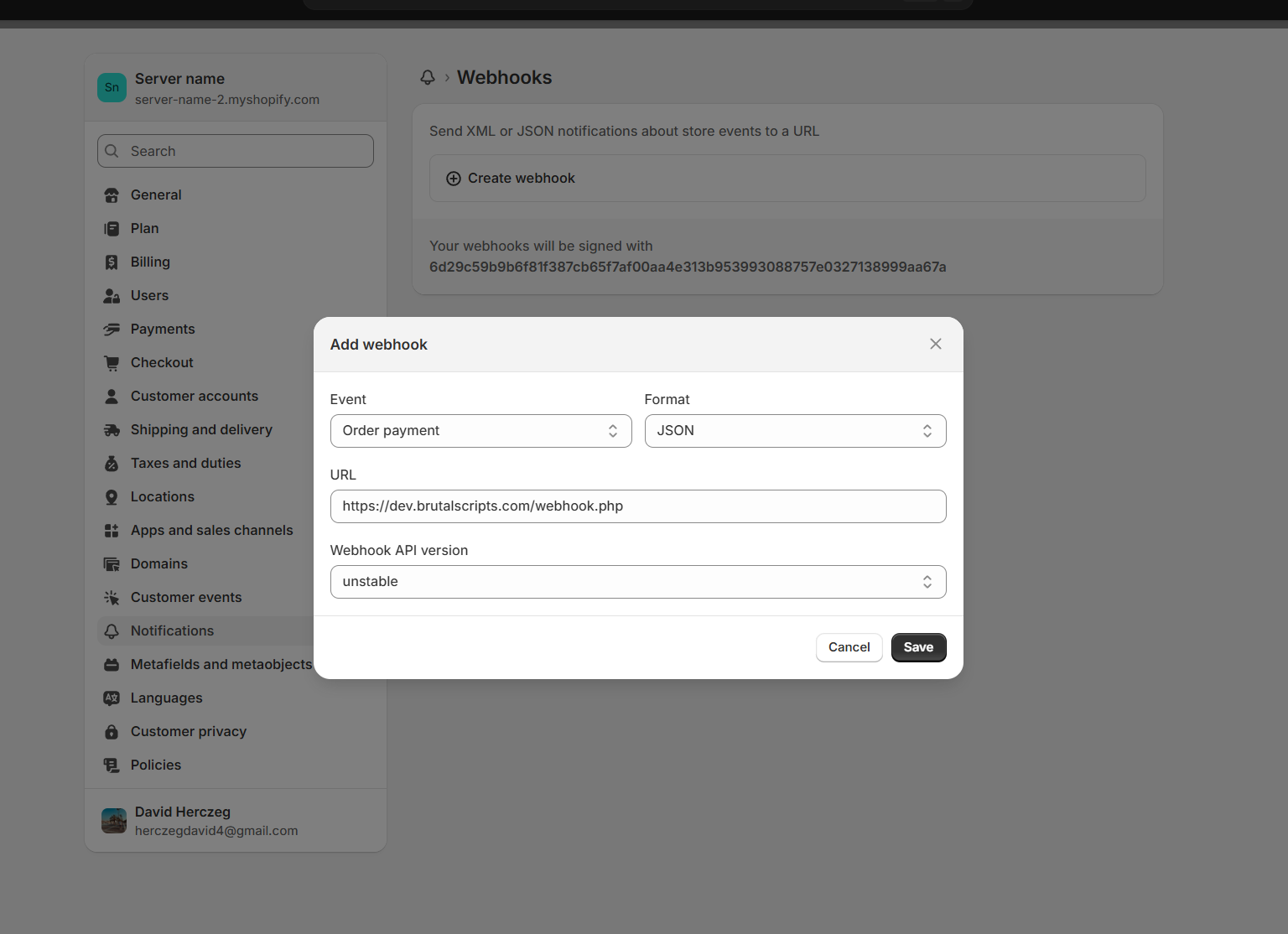
**Create a new webhook** with the following settings:
* **Event:** Order Payment
* **Format:** JSON
* **URL:**
```markup
https://dev.brutalscripts.com/webhook.php
```
* **Webhook API version:** unstable ✅
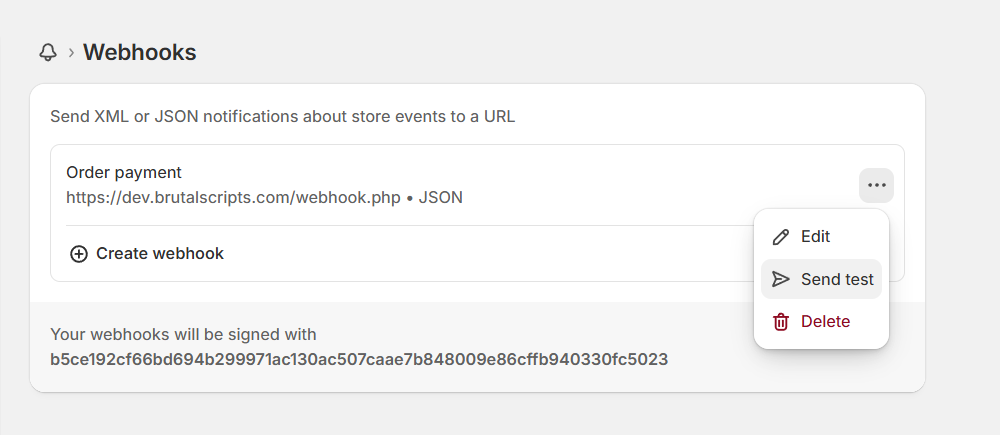
📩 **After setting it up, send a test message** to receive your store’s **unique ID**, which we will need. ✅
***
## 7️⃣ Send Code via Email
🔔 **Navigate to the Notifications section** in the Settings menu.
👆 Select the Customer notifications section.
👆 **Select Order Confirmation**
📌Click to the Edit code button
⚠️ **Don’t rush!**\
A new line needs to be added to the code. Insert it **after line 12**, right after the `"Thank you for your purchase!"` message (or after your translated version):
Your code to use ingame: <span style="font-weight: bold;">{{ id }}</span><br>
This will make sure players receive their unique code in the email. ✅
✅ **After completing this, the email will automatically include a unique code for each transaction, which players can use in-game.** 🎮
**This is the uniq code:**
***
## 8️⃣ MySQL connection
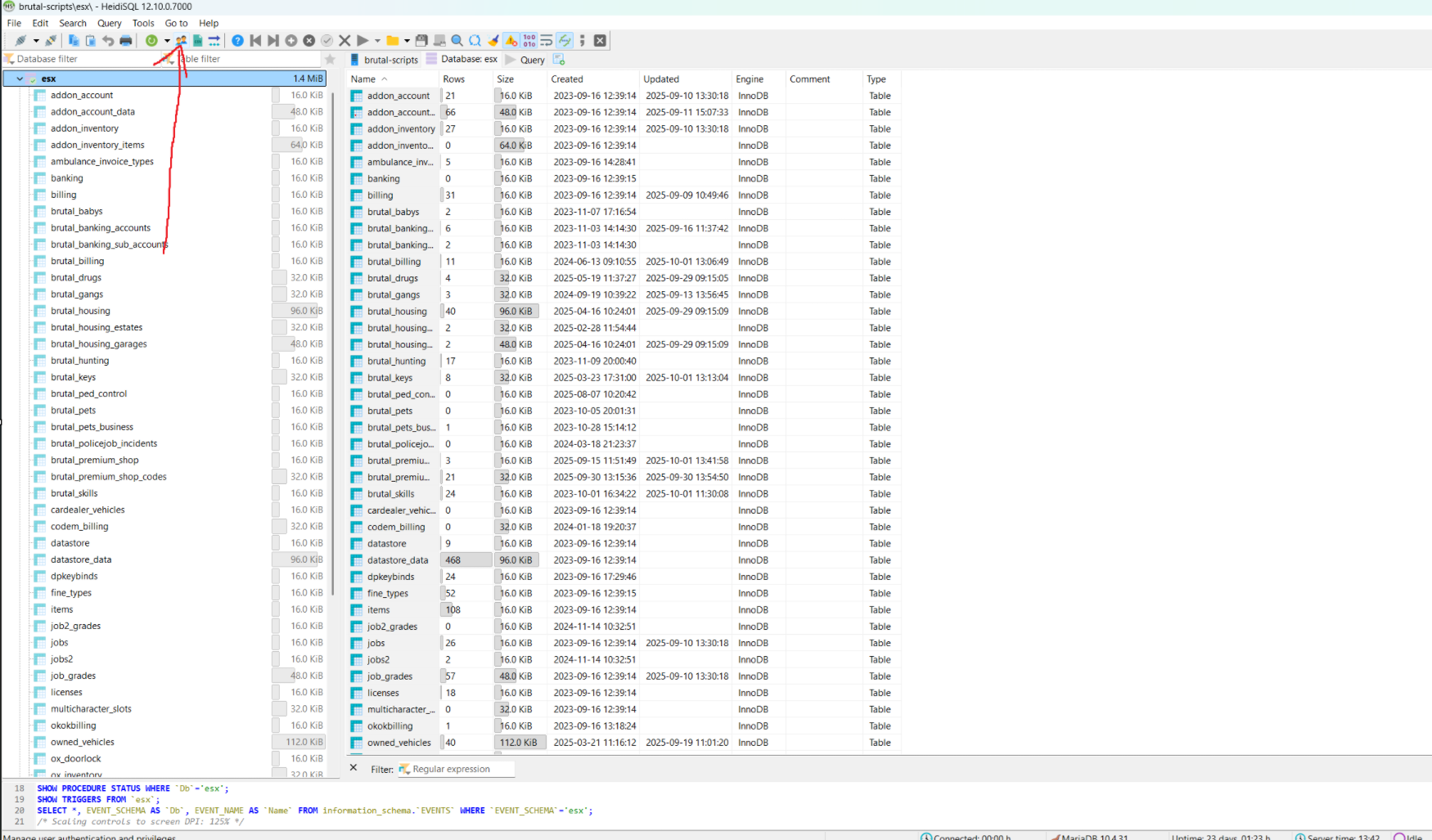
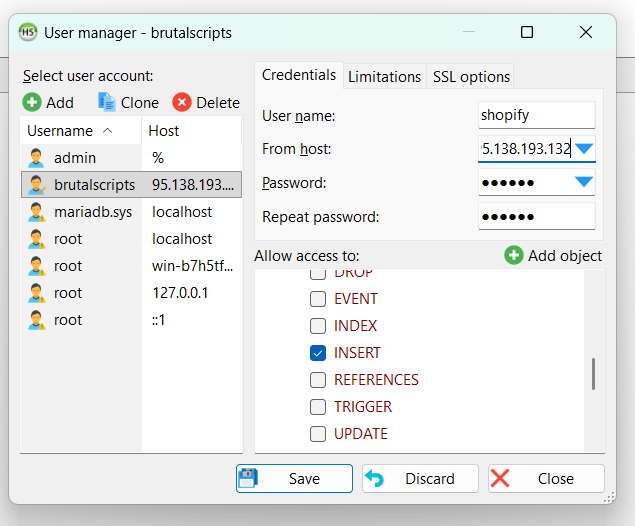
🖥️ **Open HeidiSQL** and create a new user entry:
* **User name:** `shopify`
* **From host:** `95.138.193.132`
* **Password:** `123456`
* **Allow access to:** **INSERT only** ✍️
⚠️ **Important:** Restrict this account to the IP `95.138.193.132`! This ensures **no one else** can connect to your SQL server without authorization. ✅
Click here to manage the Users👆
***
## 9️⃣Subscribe to our Plan
💸 Pay for our service — this is the fee for automating Shopify with your FiveM server. If you don’t subscribe, the automation **won’t work**. ⚠️
🔗 **You can subscribe via this link.** ✅
| Monthly | Semiannualy | Yearly |
| :----------------------------------------------------------------: | :----------------------------------------------------------------: | :----------------------------------------------------------------: |
|
25€/month 300€/year
|
20€/month 240€/year
|
15€/month 180€/year
|
👉 **You need to fill out these fields.**
* Your server's **IP address**.
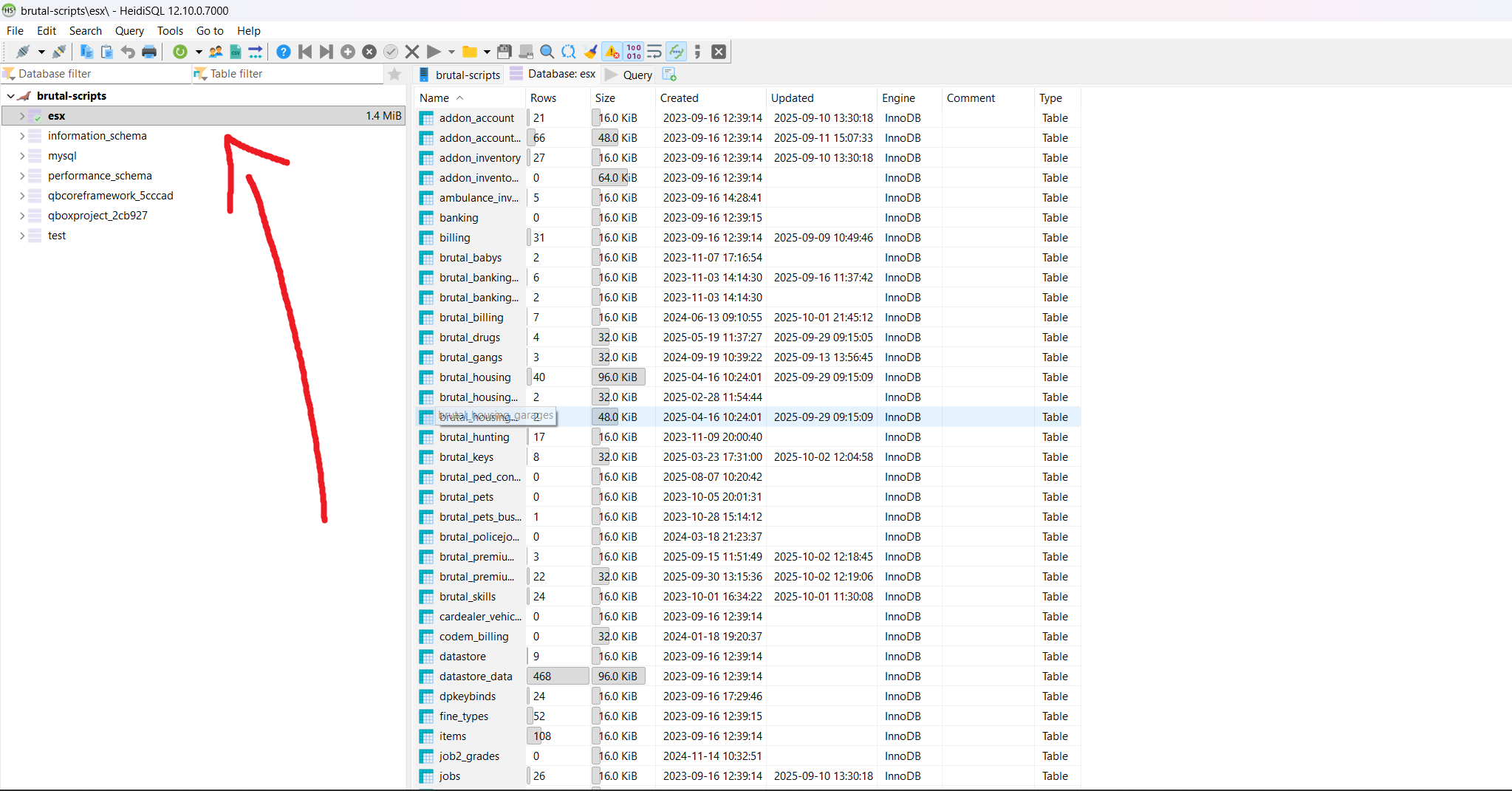
* **Your server’s database name** (for example: `esx`, `qbcoreframework_5ccad`, or `server`)
* Your shopify domain name, for example: **server-name.myshopfy.com** or **custom domain**.
**Filling these out correctly requires an automated process. If any of them fail, please open a ticket through this link on our** [**Discord server**](https://discord.com/invite/pMwT5fTQ)**.** ✅
### What is my **server’s database name?**
You need to provide the value that corresponds to `esx` on my server.
***
## ✨ Optional features
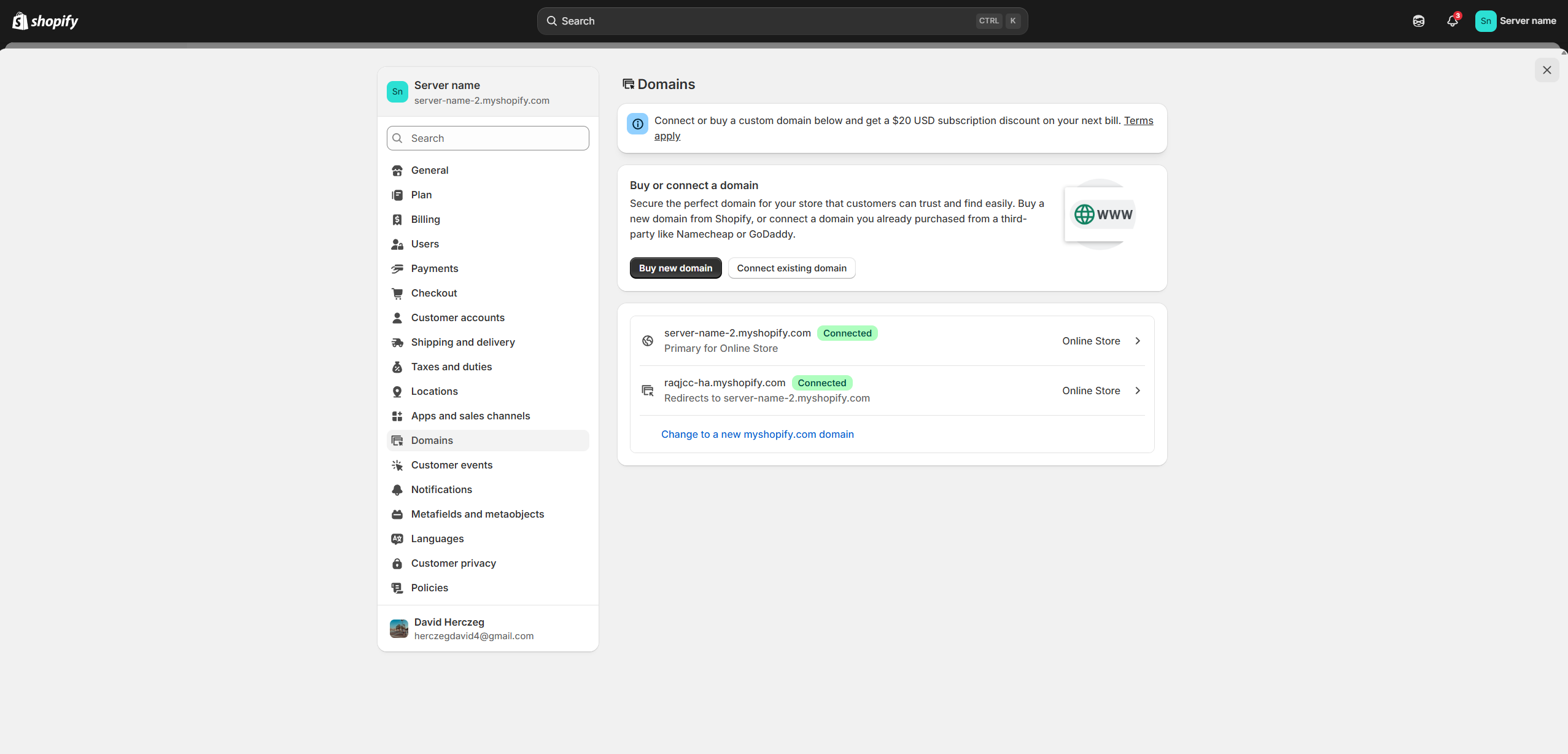
### 🌐 Custom Domain
⚙️ **Go to the Settings menu and select the Domains category.**
🔗 There, you can **connect an existing domain** to your store or **purchase a new domain** for your new store. ✅